


Game info
Character creation, Dress-up
Build a school-themed anime portrait using a compact illustrated editor. Its opening title leads to a face with separate appearance categories.
Overview
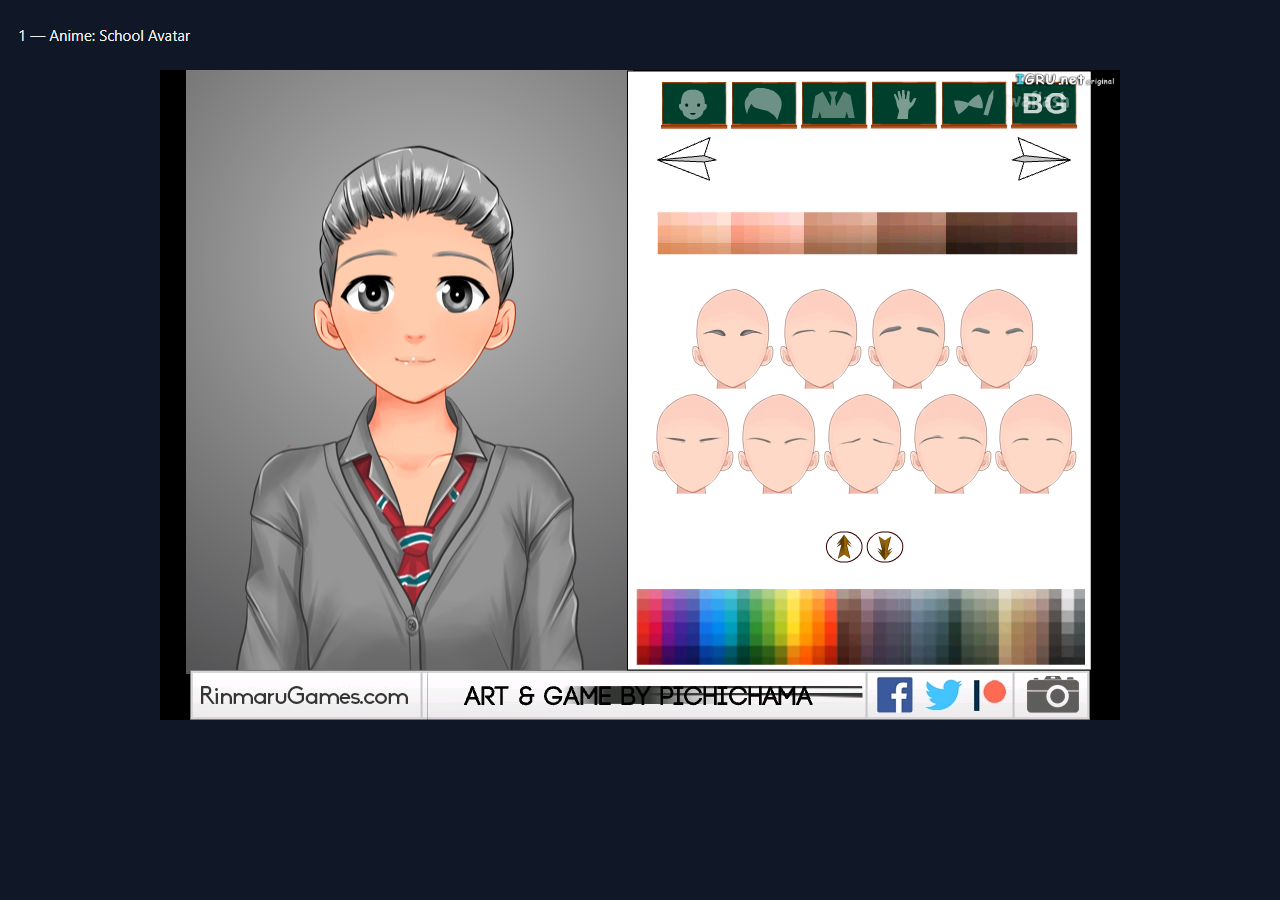
Build a school-themed anime portrait using a compact illustrated editor. Its opening title leads to a face with separate appearance categories. The checked build shows skin palettes, hairstyle choices and school-uniform artwork. Its title screen credits RinmaruGames.com and art and game by Pichichama. The Flash game runs through the published WAFLASH player, so the game query in its address identifies the actual title.
How to play and controls
Press the grey emulator Play button, then the illustrated title-screen Play button. Choose an appearance tab and click a visible palette square or hairstyle. A skin-colour selection visibly changed the portrait during the check.
Plan a character before adding details
Give the character a small visual brief: perhaps a quiet student, a travelling mage or a cheerful friend. Choose two main colours and one accent. This gives the choices in Anime: School Avatar a purpose and makes it easier to compare two hairstyles or outfits. A recognisable silhouette usually matters more than a large number of accessories, especially when the final image is viewed at a small size.
Work through the editor deliberately
Change one feature at a time and look at the full preview before moving on. Start with the face and hair, then coordinate the clothes with those colours. If an option looks wrong, revisit that category rather than changing every part of the design. Small adjustments to eyebrows, eye shape or a fringe can change the character expression while preserving the rest of the idea.
Make variations that tell a story
Once the basic look works, imagine a second version for a different situation. Keep one identifying feature, such as the hair colour or a distinctive accessory, and alter the surrounding outfit. This is a useful way to practise cast design even when the editor handles one character at a time. Take a screenshot of a favourite result if you want a reference; do not rely on unverified cloud saving or export features.
What this browser version is
Anime: School Avatar is a separate character editor, not an official Lunime Gacha Life or Gacha Club browser edition. It is recommended for the shared activity of creating anime or chibi characters; native game accounts, studio tools, combat and collections should not be assumed.
Frequently asked questions
How do I control Anime: School Avatar?
Press the grey emulator Play button, then the illustrated title-screen Play button. Choose an appearance tab and click a visible palette square or hairstyle. A skin-colour selection visibly changed the portrait during the check.
Is this an official Gacha Life or Gacha Club game?
Not a Lunime release or the reused Gacha Life Maker main player.
What was confirmed in the browser check?
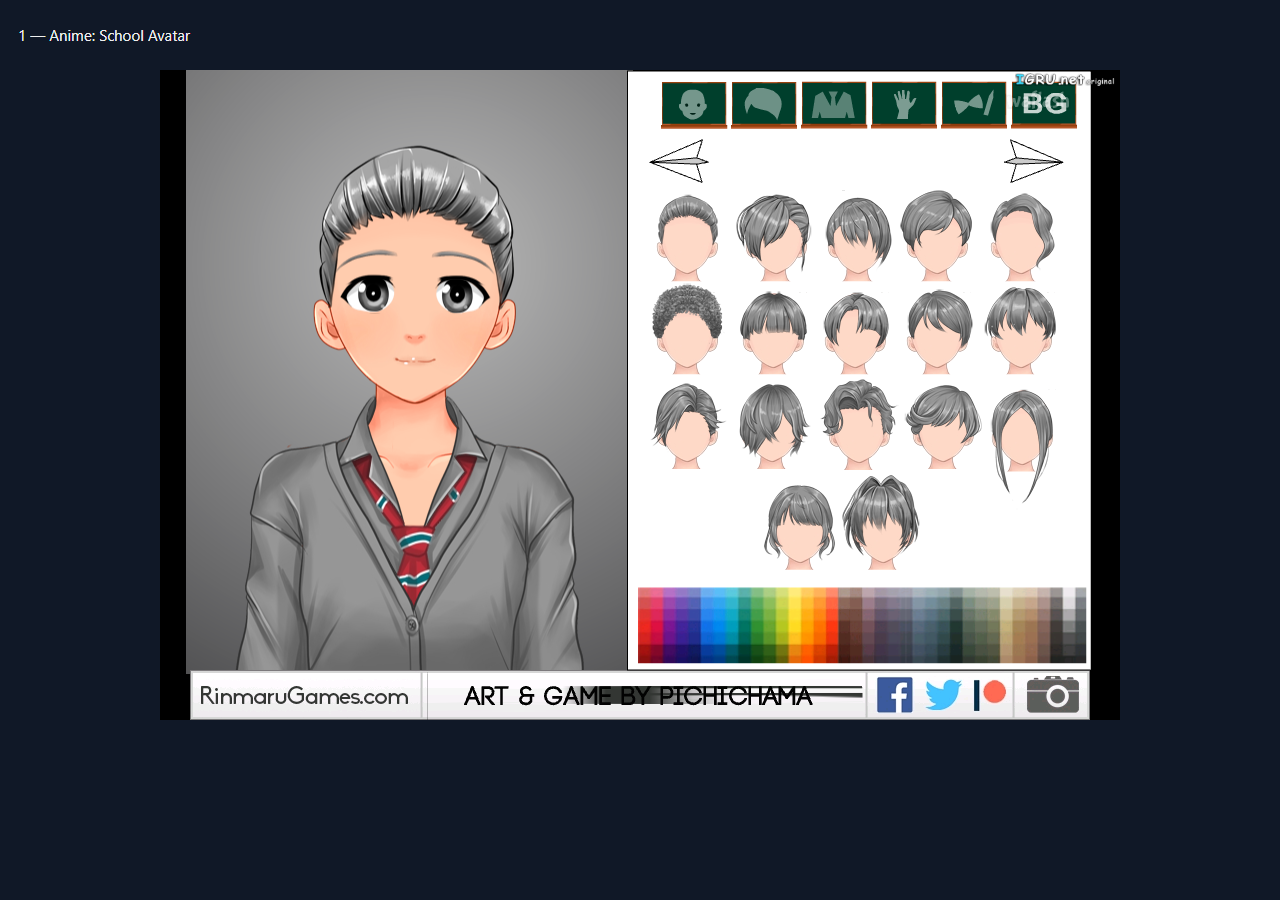
WAFLASH Play→school Play opened a detailed RinmaruGames anime portrait editor; screen credits Art and Game by Pichichama. Clicking the skin-tone strip visibly recoloured the character from grey to natural light tone. Hair tab also responded with a new selection panel. Face/hair/uniform/accessory/background categories are separate from Lunime games; original SWF identity-bearing game parameter retained.
Good game? Tell us.0
Share a tip, celebrate a high score, or tell us what you think. Keep it friendly.